
A2P CAMPAIGN VIA QUICK SETUP
The Quick Setup (Pre-Built A2P Campaign) registration flow is a structured campaign submission experience designed to:
Improve compliance accuracy
Reduce carrier rejections
Eliminate manual compliance writing
Prevent classification errors
Streamline the A2P registration process
This flow enforces a Chat Widget–based opt-in method and automatically applies carrier-aligned compliance standards.
By locking required compliance elements and auto-generating mandatory disclosures, the system significantly reduces submission errors and approval delays.
Note: This campaign registration flow is not available for:
Mixed use-case campaigns(Sole prop) the use case will remain same i.e Sole prop.
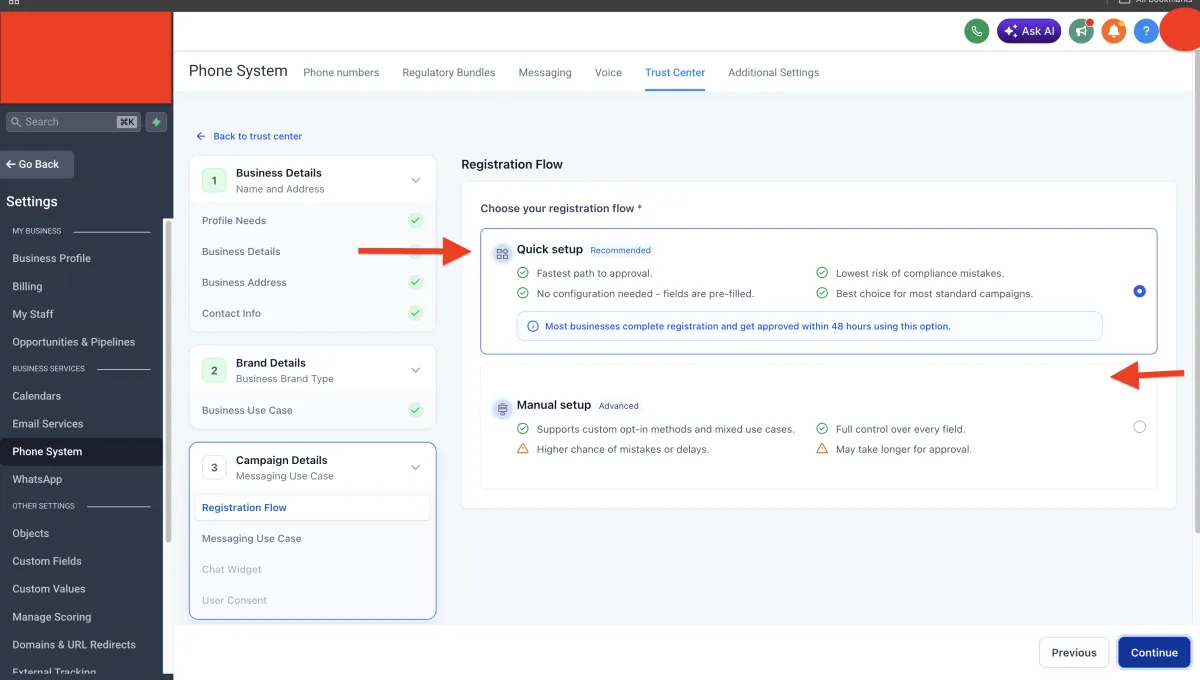
Chat widget setup
HighLevel’s Pre-Built A2P (Widget-First) Flow simplifies compliance by using a pre-vetted chat widget to collect phone numbers. It uses an embedded, non-form, AI-validated widget on your site as the official, carrier-compliant opt-in method. This ensures high approval rates for 10DLC, focusing on a single, standardized widget approach. Most business complete there registration and get approved within 24-48 hours.
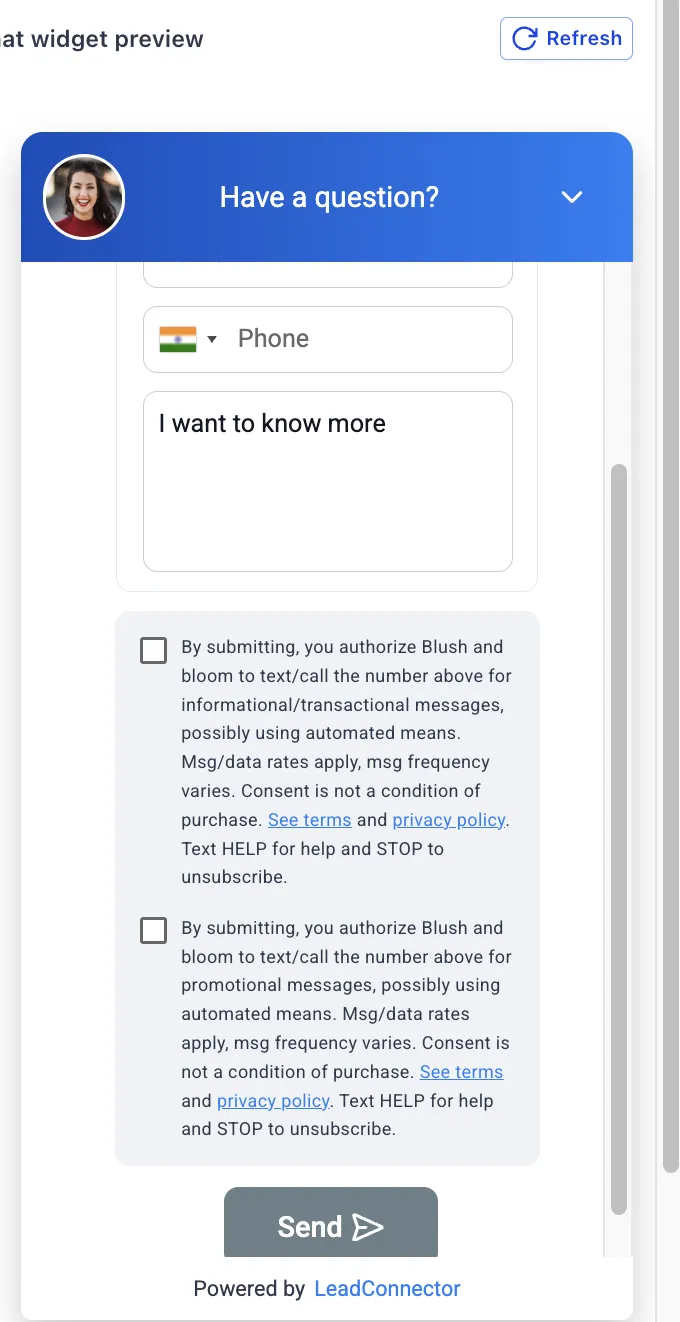
CHAT WIDGET FOR SOLE PROP
All use cases are available for Sole Proprietors
The use case must be registered as “Sole Proprietor”
Respective use case needs to be selected(Marketing/Non-marketing/Mixed use case).
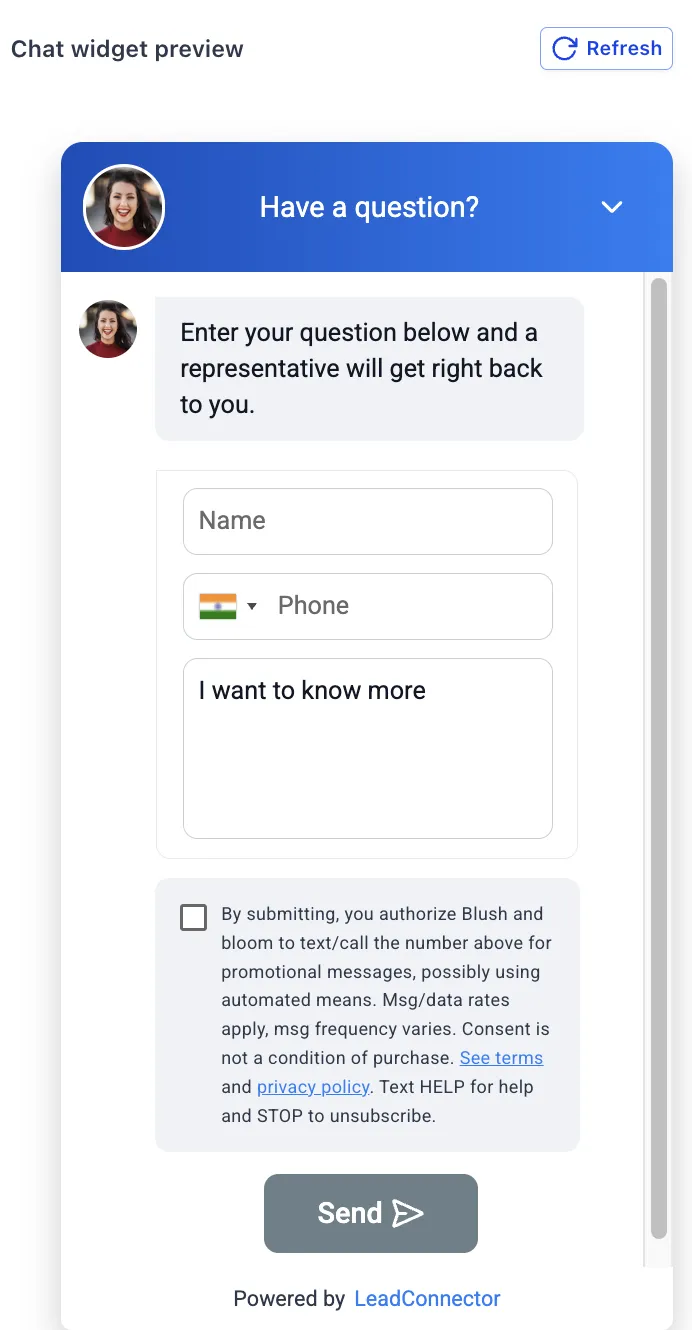
Chat WIDGET- Marketing/promotional
Promotional and sales-driven messages.
New product launches
Seasonal offers and discounts
Newsletters
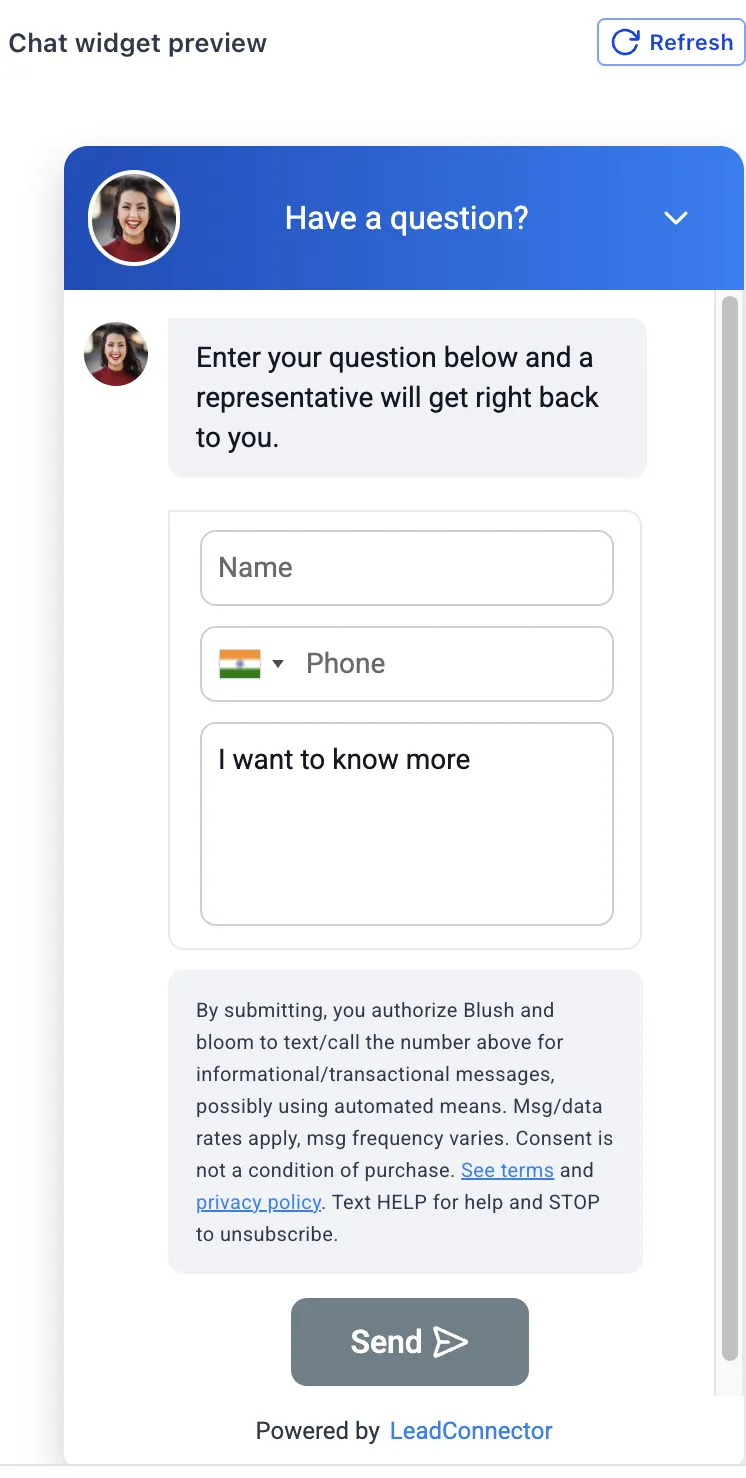
CHAT WIDGET- non-marketing/TRANSACTIONAL
Appointment reminders
Service updates
Order confirmations
Booking confirmations
Delivery / order status updates
General service notifications
CHAT WIDGET-mixed
(Recommended)
Used for a mix of transactional + occasional marketing messages
Appointment reminders + occasional offers
Service updates + promotional discounts
Customer follow-ups + feedback
CHAT WIDGET FOR SOLE PROP
Chat WIDGET- Marketing/promotional
CHAT WIDGET- non-marketing/TRANSACTIONAL
CHAT WIDGET-mixed
Common Reasons for A2P Rejections (Chat Widget) — Quick Setup Guide & Fixes
1. CTA / Opt-in Error (Chat Widget):
This happens when the chat widget is added from:
Website → Settings → Chat Widget
In this setup, the consent checkbox does not show, and consent appears pre-selected → leads to rejection.
Example 1:
You added the widget using the dropdown option
User opens the chat → no checkbox to agree for SMS within the Chat widget.
System assumes consent is already selected → Rejected
Fix:
Remove the current widget
Go to A2P Chat Widget setup flow
Copy the embed code
Paste it into the website body section
Example 2: Modified Widget Branding or Consent Language
Issue
The pre-built chat widget was edited and the branding text (for example, "Sponsored by LeadConnector") or consent language was modified.
This can lead to campaign rejection because the widget's approved language has been altered.
Resolution
Do not modify the widget's default wording, consent language, or branding details.
You may customize:
Colors
Styling
Interface appearance
Do not edit:
Opt-in language
Compliance text(Terms and privacy pages)
"Sponsored by" details
Example 3: Switching Campaign Types
Issue:
Changing a campaign from a manual registration flow to a Chat Widget flow (or vice versa) can cause inconsistencies in the opt-in language.
For example, the submission flow may display "Opt-In Form" instead of "Chat With Us", creating an opt-in compliance error that results in rejection.
Resolution:
Create a new Chat Widget campaign.
Compare the system-generated sample language with the existing campaign.
Replace any custom or outdated wording with the current system-generated compliance statements.
Resubmit the campaign using the corrected language.
2. Unverifiable Website Error:
This happens when the website URL is different in different places. Or the main domain shows 404 Error(404 page is not set for the webisite).
Example:
Customer Profile: www.abcservices.com
Business Profile: abcservices.io
Campaign: abcservices.io
Since one URL is different → Rejected as “unverifiable website”
Fix:
Make sure the same website URL is used in: FYI the chat widget campaign flow is going to pick the website URL which is listed on the sub account's Business profile.
Customer Profile
Business Profile
Campaign
3. Failed Campaign (Chat Widget Flow):
If a Mixed Use Case or Sole Proprietor campaign is rejected, it cannot be resubmitted using the new registration flow. You will need to delete the previously rejected campaign and submit a brand-new campaign instead.
Go to Trust Center → Brand & Campaign → Campaigns
Click the 3-dot menu and delete the failed campaign
Return to Trust Center and select Create Campaign
Start fresh using the Chat Widget flow
Key Details for A2P & Chat Widget Integration
Key Considerations for Using the Chat Widget
1]Website URL Consistency
Ensure that the website URL listed on the Business Profile matches the website used for the Brand and Campaign.
If a different website is being used for the campaign, the campaign may need to be failed/rejected in order to edit the "How do customers opt in to the messaging flow?" section.
In such cases, add the following statement:
"Please refer to abc.com to view the customer's business, as this is the most up-to-date website for their business."
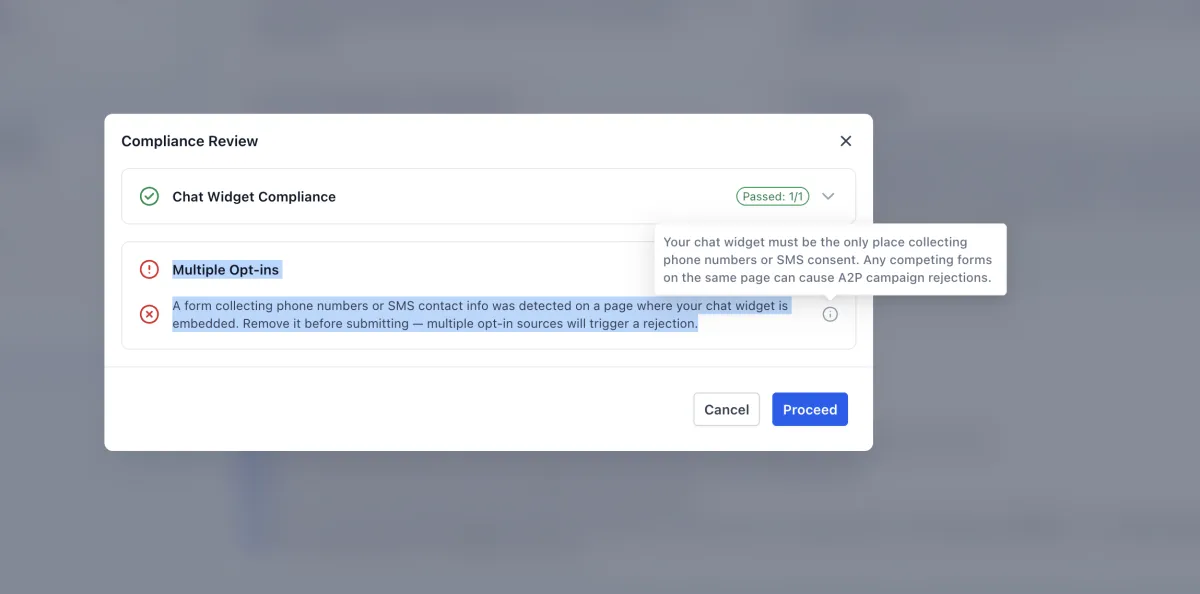
2]Remove Phone Number Collection from Website Forms
When using the Chat Widget, make sure your website does not contain forms that collect phone numbers, including:
Contact forms
Calendar/appointment booking forms
Surveys
Quizzes
Any other lead generation forms
Remove all phone number fields and any related consent checkboxes from the website.
3]Website Structure & Compliance Requirements
Your website should not be a one-page website. It must be professionally structured and contain multiple pages.
Website Compliance Checklist
Clear Business Information
About Us page with company details.
Contact Us page containing:
Physical business address
Phone number
Email address
Team bios with real names and professional photos (where applicable).
Transparent Business Model
Clear description of products and/or services.
Pricing information or a transparent pricing structure.
Clearly defined value proposition.
Trust Signals & Legal Compliance
Dedicated Privacy Policy page.
Dedicated Terms of Service/Terms & Conditions page.
HTTPS-secured website.
Authentic customer testimonials or reviews.
Partner, accreditation, or certification logos (where applicable).
Functional & Professional Design
User-friendly website layout.
No broken links or 404 errors.
Professional-quality images and branding.
FAQ section.
Social Proof & Online Presence
Verified social media profiles linked on the website.
Press mentions, articles, or blog content.
Active blog, resources section, or company news page.
Failure to meet the above requirements may result in campaign rejection or delays during the compliance review process.
What to learn more about Privacy and Terms pages?
© 2026 Team Anika - All Rights Reserved, Created by Archana and Ankita.